
A wall of notes is hard to scan. A five-minute review window is worse when the ideas you need are buried in paragraphs. Visual Notes exist for that gap: after Lernix finishes structured notes, it draws a single 16:9 infographic from the same material — a page you can open, zoom, and save to Photos.
This is not a coming-soon teaser. Visual Notes are part of the live study pack on iPhone and iPad, next to Smart Notes, flashcards, quizzes, and mind maps.
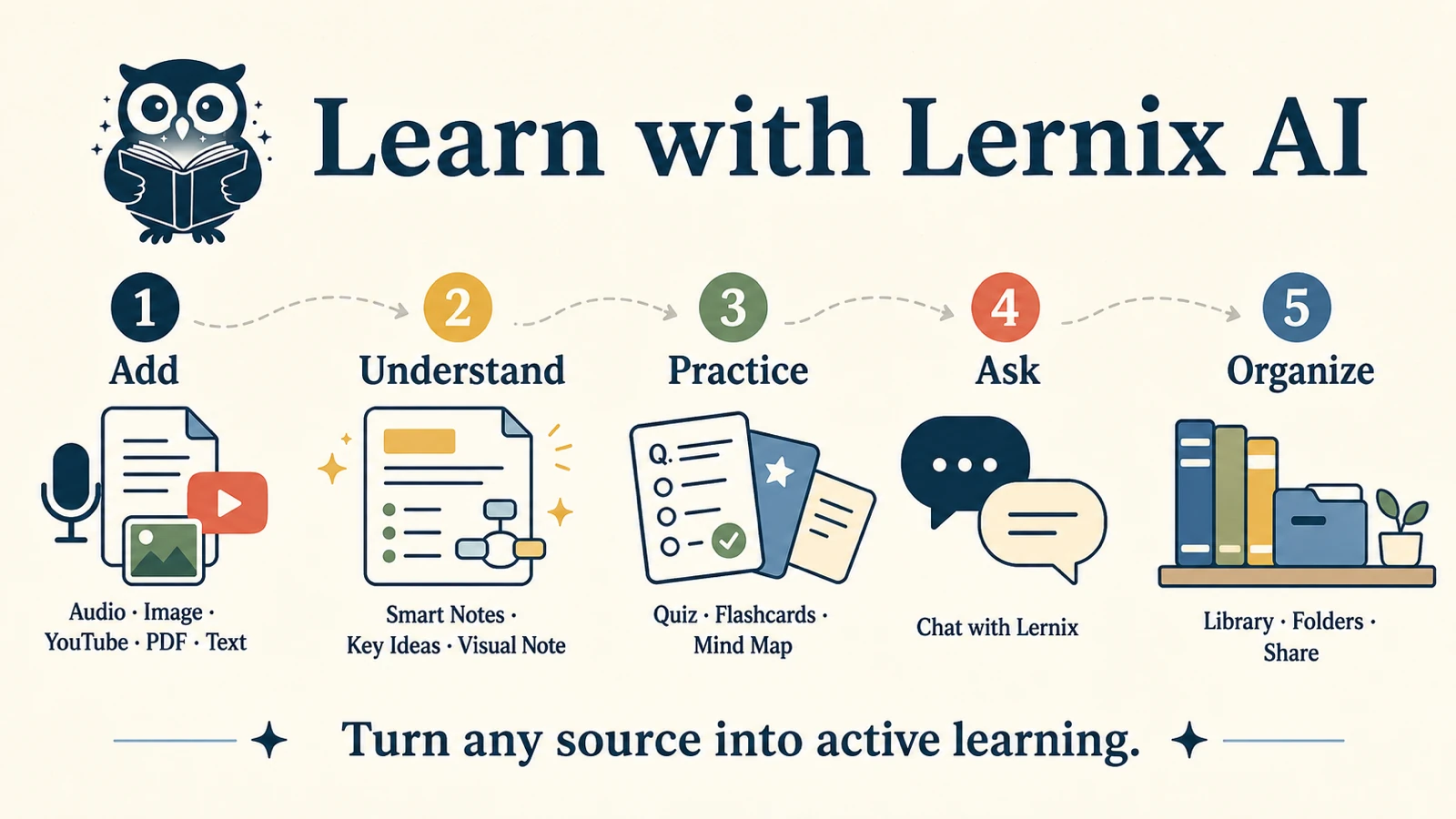
The image above is itself a Visual Note. It is the same format the app generates from your own PDF, lecture, YouTube video, photo, or pasted text.
What a Visual Note actually is
A Visual Note is one polished 16:9 study image. It is not a screenshot of your notes, and it is not a decorative poster. The generator is asked to:
- write every visible word in the language of the material
- keep the material title
- extract 3 to 6 essential knowledge points
- pair each point with a short explanation that still makes sense on its own
- use a clean editorial infographic layout: clear hierarchy, large type, restrained color, generous spacing
- add a simple illustration only when it clarifies a concept
- invent nothing — only facts from the supplied material
That last rule matters more than the layout. A pretty infographic that hallucinates a definition is worse than a messy notebook. Visual Notes are built to stay inside the source.
How they show up in a real study session
You do not start a separate “make an infographic” project. You add the material you already study from:
- a YouTube lecture or tutorial
- a PDF or other document
- a lecture recording
- a photo of a slide, whiteboard, or page
- pasted text
Lernix first builds Smart Notes. When those notes are ready, a Visual Note is queued automatically from the same summary. If generation fails, you can request it again. Editing or translating the notes starts a new Visual Note for the new version — the old image is not reused, so you do not keep a picture in the wrong language.
Inside the app you can open the image full screen, zoom and pan, and save it to the photo library. That is the point of putting the review on a single page: it can live next to the flashcards, or on your lock screen, or printed beside a desk.
New accounts can use Lernix free. A Visual Note is one output in the same pack as notes, flashcards, quizzes, and mind maps — not a separate product.
Why a page of pictures beats another wall of text
You already have linear notes. Visual Notes are for a different job.
1. A short review window. Before a seminar, on a commute, or between two lectures, you need the shape of the topic, not another chapter. Three to six points with self-contained explanations are built for that scan.
2. Dual coding without DIY design. Reading a definition and seeing it placed in a hierarchy is a different memory cue from rereading the same paragraph. You do not have to open Canva to get that layout.
3. Messy, visual subjects. Cycles, comparisons, processes, and named parts of a system are easier to hold when they are laid out on one page instead of buried in a transcript. Chemistry pathways, anatomy lists, and exam “must-know” clusters are typical fits.
4. Studying across languages. The image is written in the material language. After you translate notes, a new Visual Note follows the new language. Short labels on a page are often easier to review in a second language than a long prose summary.
5. Something you can export. Flashcards stay in the app. A Visual Note can leave it: save to Photos, share, print, pin. That is useful when you want a physical cue without rebuilding the page by hand.
None of this is a claim that Visual Notes raise exam scores by a fixed percentage. They compress the source into a draft page. You still check the original.
Visual Note vs mind map vs chatbot
A mind map is a branching structure: one topic, a few branches, short node labels you pan and zoom. It answers “how do these ideas connect?” A Visual Note is a single editorial page: a handful of explained points, set for reading at a glance. Use the map for structure. Use the Visual Note when you want a poster-sized recap you can save.
A generic chatbot needs text you already have. It returns more text. It does not produce a 16:9, fact-locked infographic from the PDF or the YouTube link, and it does not keep that image next to flashcards generated from the same analysis. Turning a lecture into a page you can pin is a different job from answering a question.
For the full study-pack workflow from a long video, see YouTube to study materials. For documents, see PDF to flashcards. For the Visual Note workflow itself, see turn study material into a Visual Note.
What Visual Notes are not
- They are not a transcript. Detail that only appears in a footnote or a fast aside may be missing.
- They are not a guarantee. Treat the page as a draft. Check names, numbers, formulas, and diagrams against the source.
- They are not a replacement for practice. Flashcards and quizzes still do the recall work. The Visual Note orients you; it does not test you.
- They are not a license to skip the original. If you are not allowed to upload the material, do not upload it. Follow academic-integrity rules and do not upload confidential or restricted files.
Try it on material you already have
Open Lernix, add a lecture, PDF, YouTube link, or page photo, and wait for Smart Notes. The Visual Note follows. Open it, check it against the source, save it if the page is useful, then move to flashcards for the points that still feel thin.
That is the feature: one page, grounded in your material, ready to scan.